
Troubleshooting & FAQs
Here are some quick answers and guides for commonly asked questions about the site/app. For any specific team- or club-related questions, please reach out to your team manager or club admin.
I can't log in
Please click on the SIGN UP link in the upper left hand corner and create an account.
Signup says this email already has an account.
Follow the forgot password instructions. If no email to reset the password is received (check your JUNK or SPAM folders 1st!), email help@crossbar.org for a temporary password.
Emails
HOW DO I CHANGE MY EMAIL ADDRESS OR PASSWORD?
1.) Log on to the website using your email address and password.
2.) Click on the DASHBOARD link in the upper left hand corner.
3.) Click on the PROFILE link on the left hand side
4.) Page down past the name & phone numbers field until you get to the password or email sections, update the info and click on save. NOTE: Any new email address will require that you verify the email address so watch for the verification email and follow the instructions, otherwise your account may get stuck in limbo and require help from Crossbar to fix it.
GRANTING ADDITIONAL USERS ACCESS TO FAMILY CALENDAR FOR SCHEDULE VISIBILITY
1.) Log in (must be the parent who registered)
2.) B. Select Dashboard (upper left corner)
3.) Select PLAYERS on the left-hand side
4.) Select "View Details" next to your player's name
5.) At the top of this display is a link: "+ ADD PARENT". Click on this link.
6.) Add the parent's email address and select ADD PARENT
a. If the parent already has an account, they will be added immediately.
b. If the parent does not have an account, then a verification email will be sent to them. They must click on the link to verify their email and then create an account by supplying their name, selecting a password, and supplying a phone number. The parent will be added once they have created their account. Parents associated with the child can check to see who has been added by following steps 1-6 at any time.
Updating Your Payment Information
Credit/Debit Cards may expire or become lost/stolen throughout the season. If you are notified of a failed payment, please update your card as soon as possible.
Steps to change/add a credit card:
1.) Log on
2.) Click on the Dashboard (link in upper left-hand corner)
3.) Click on the Participants tab on the left-hand side of the page
4.) Click on View Details next to your child’s name
5.) Page down on the Player Info page until you get to “Registration History”
6.) Click on View Details next to the Program to which your child has remaining payments.
7.) Click on the EDIT button next to the card # of the next installment and add another card.
8.) Once you have changed/added a new credit/debit card, please notify the Registrar/Treasurer so that an adjustment to the payment due date and/or amount can be made.
Registration Call Out
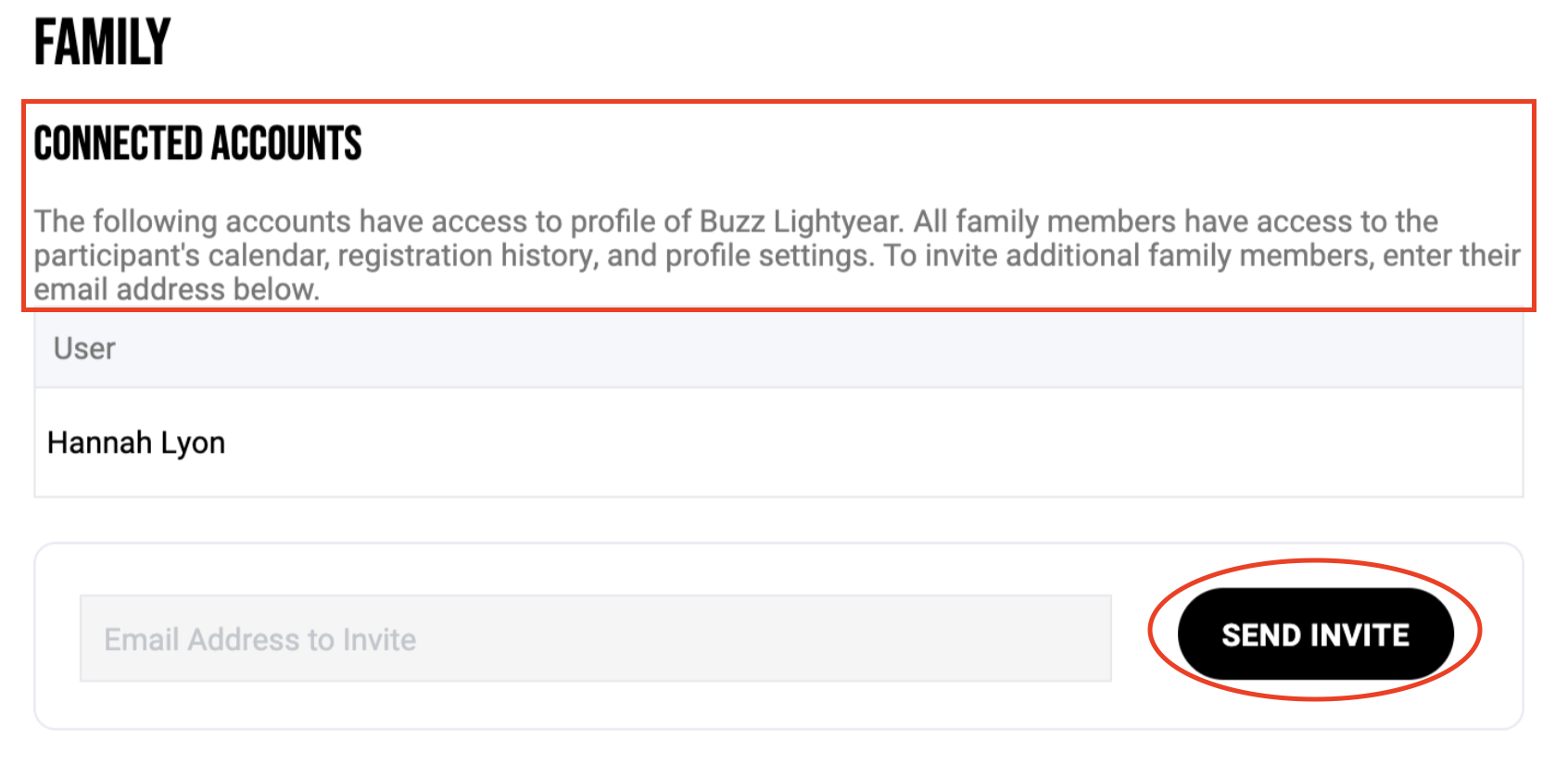
Please make sure all users who need to be connected to your player are added to this list on the first page of the registration. Someone missing? Enter their email and send them an invite.
If this did not answer your question or spark additional questions, please reach out at help@crossbar.org for further assistance!