Crossbar App Notification Settings
Below are some recommended settings to stay up to date on communications from the club, coaches, and/or team managers during the season.
For additional assistance, please see the Crossbar Mobile App Help Section, send a chat on this site, or email help@crossbar.org.
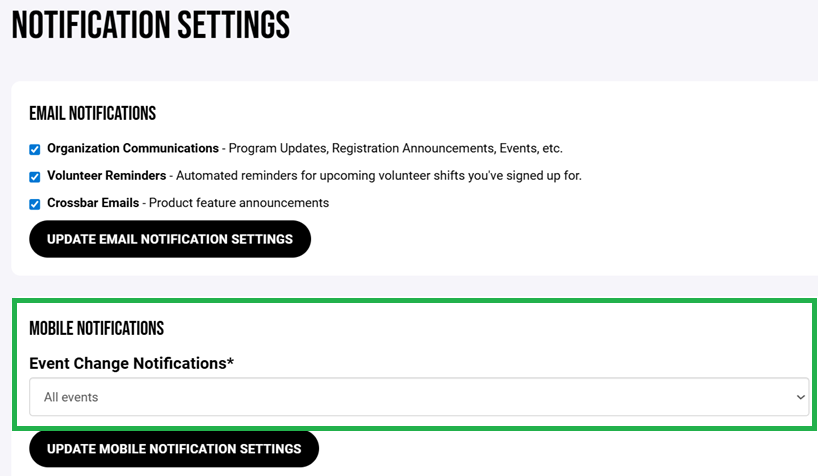
For Crossbar, your account has a setting for event notifications. When schedules are updated with events, practices, games, etc., the setting allows you to be notified as soon as they are scheduled by the system.

Check Your Settings
- Log in to your organization's website.
- Click on Account in the top left.
- On the left-hand side, you'll see "Notifications"
- Under "Mobile Notifications," you can change your preferences.
iPhone Crossbar Settings
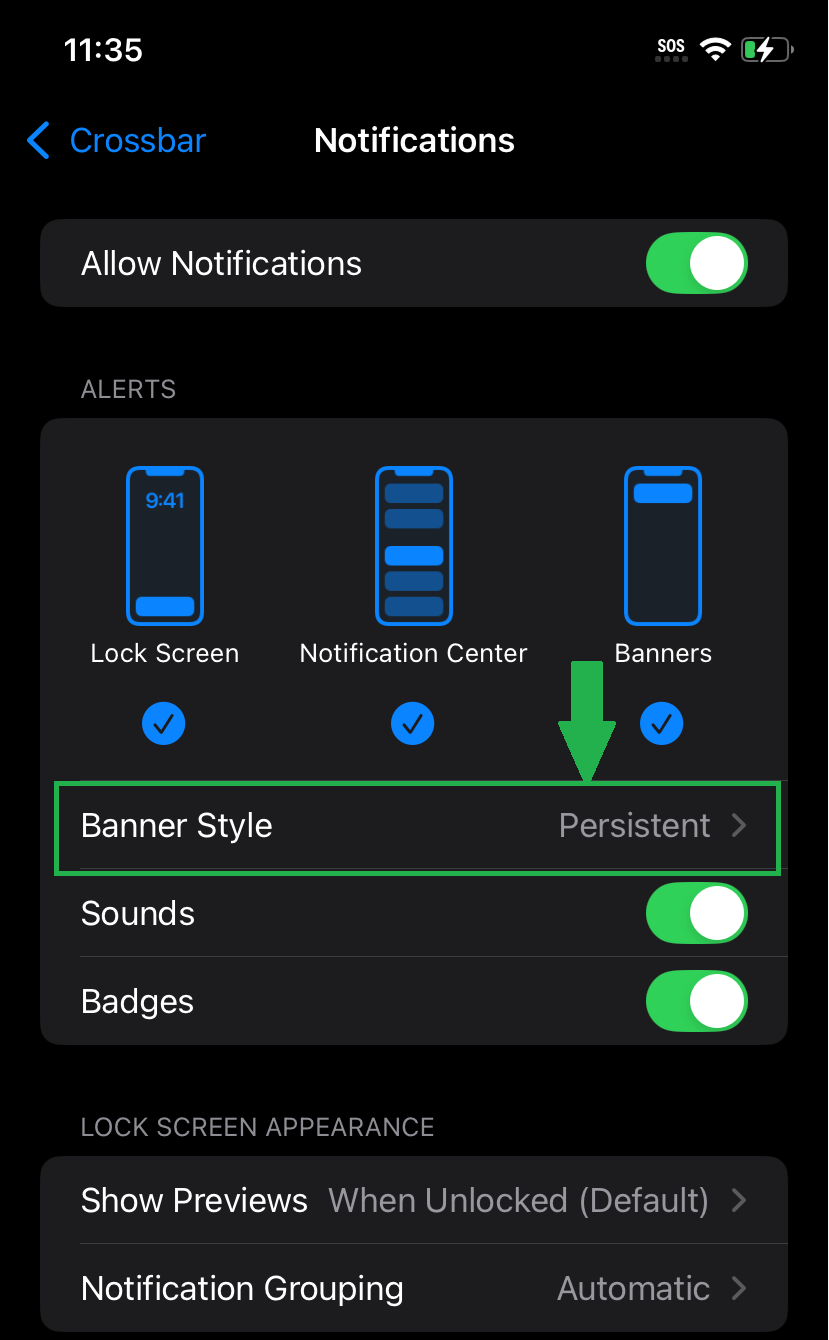
With iPhone, navigate to Settings and then to Apps. In Apps, select Crossbar and then select Notifications. Set the Banner Style to be Persistent to keep the notification present. This will help ensure that an important message is not dismissed under the Temporary setting.
Android Crossbar Settings
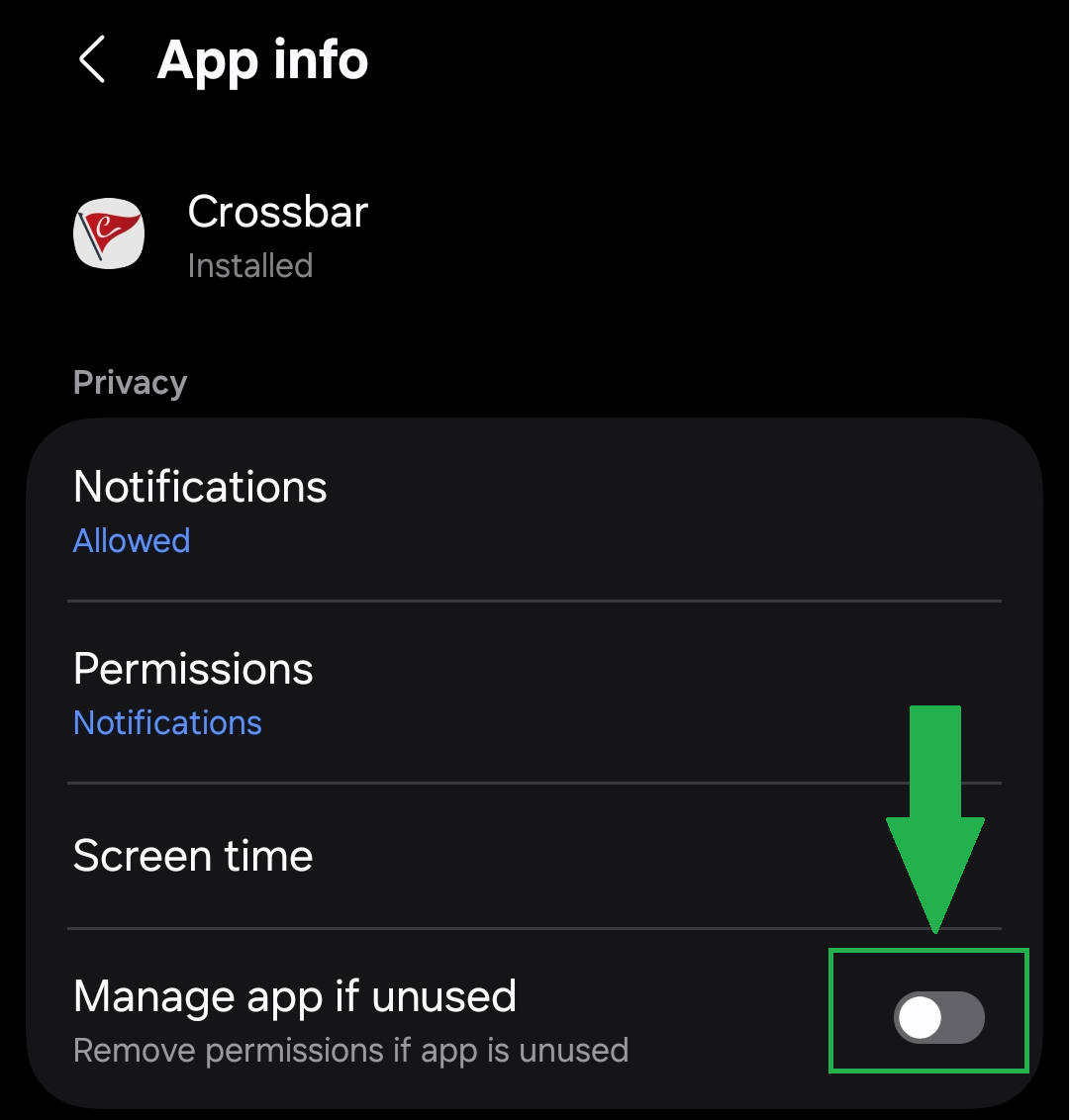
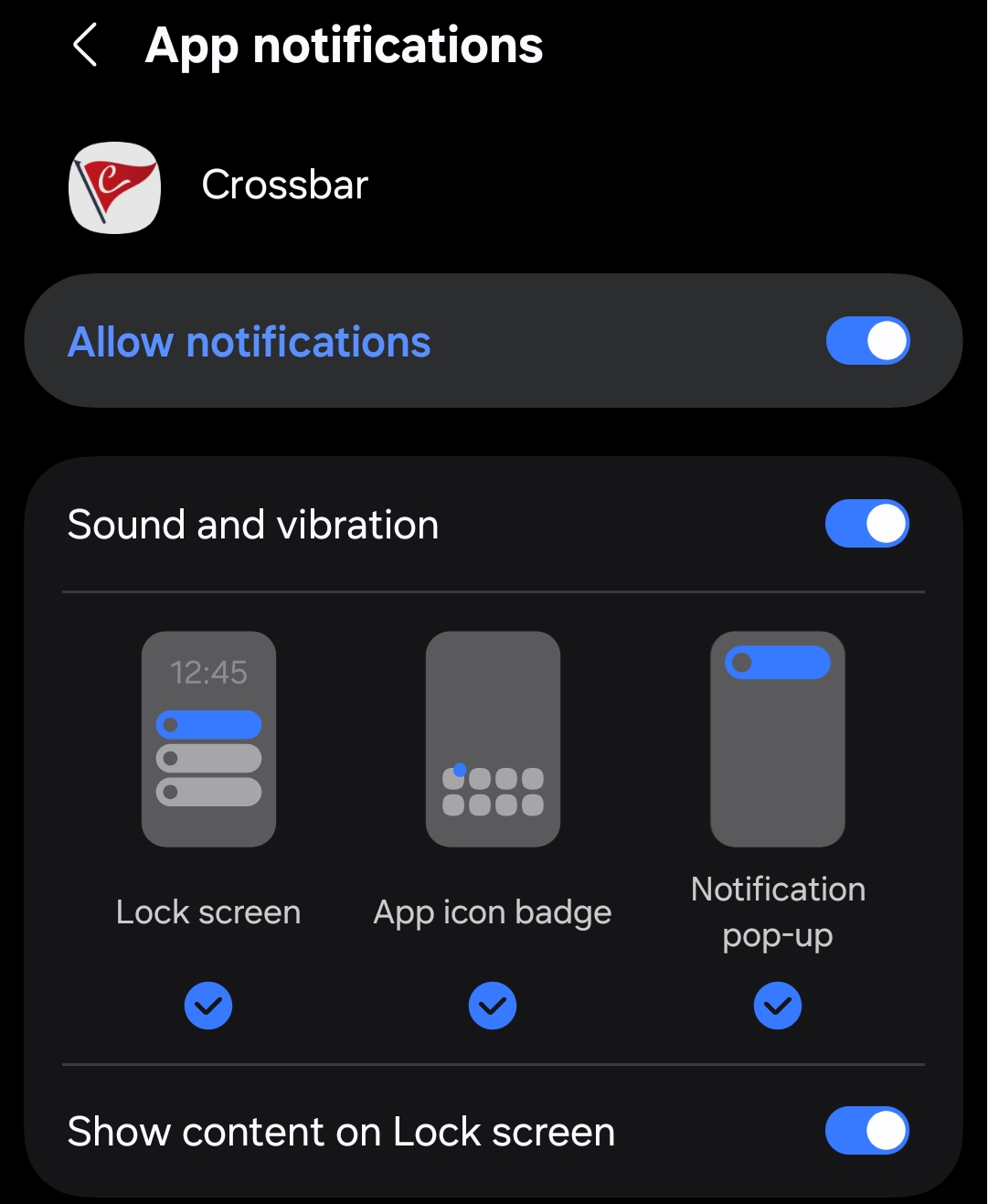
On Android phones, navigate to Settings > Apps. On the Crossbar App, please unselect Manage app if unused. Under Notifications, please make sure Notifications are allowed and set notifications to appear. Our recommendation is to have everything selected to help prevent missing any important/last minute notifications from the coaches, team manager, and/or the club.